IPTV Installation Guide
Follow this simple IPTV installation guide, install a compatible IPTV player on your device, open the app, and log in using the M3U link or Xtream credentials provided after subscription. Once the playlist loads, refresh the channels, and you can immediately start watching live TV and on-demand content.
How to install the Best IPTV Services on Windows, Firestick, PC, Android, Samsung TV, Apple TV, iPad, iOS, Laptop, or iPhone? The general process is to install it from the official site, but some devices don’t support direct installation. For this, we’ve crafted a guide to help you understand the installation guide for specific models, including Fire TV Stick, Roku, iOS, and others.
Apple/IOS :
For IPTV Installation on Apple/IOS Devices:
Step 1: Begin by installing the Smarters Player application from the Apple Store using this link:
https://apps.apple.com/in/app/smarters-player-lite/id1628995509
Alternatively, you can look it up on the App Store by searching for “Smarters Player Lite.”
Step 2: After the download is complete, open the app and choose the option “Login with Xtream Codes API.”
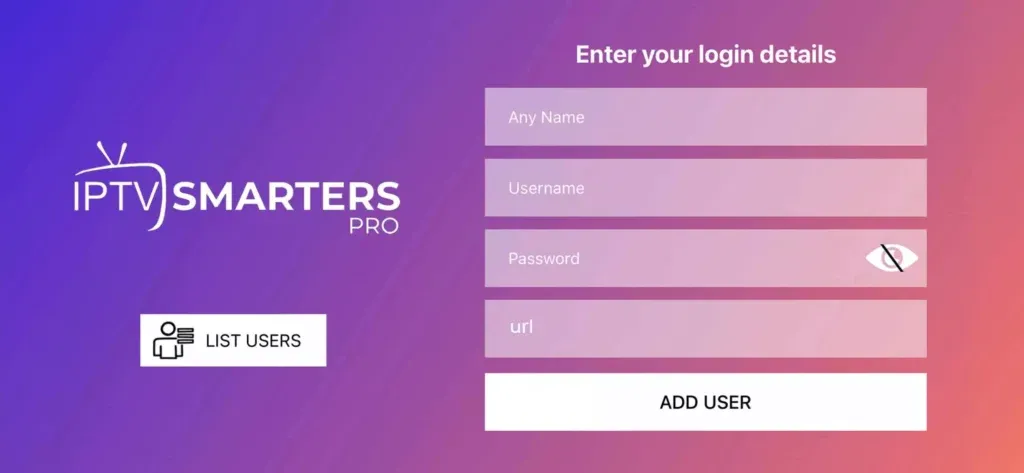
Step 3: Enter the credentials we shared with you once your subscription is activated.
Next, select “ADD USER” to move forward to the following section.
Step 4: Please wait a few moments.
Step 5: Tap on the “Live TV” icon, as shown in the image with the red arrow.
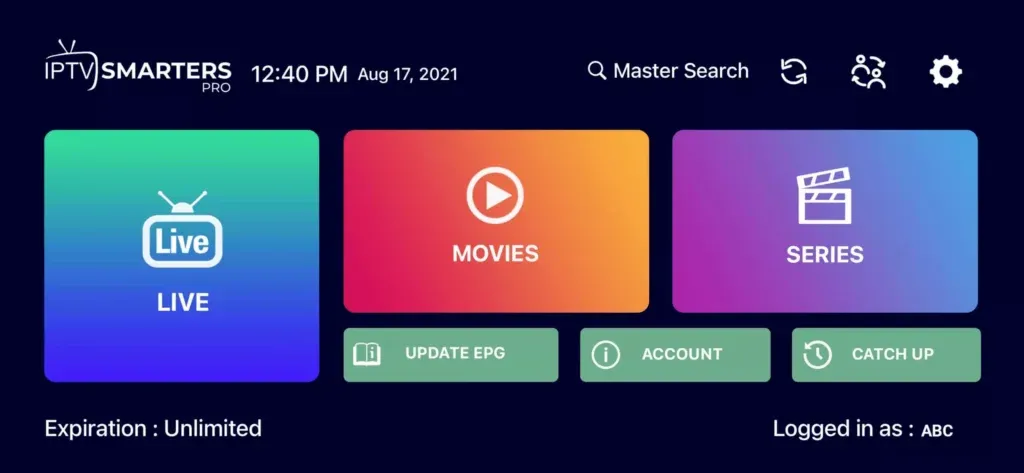
Step 6: Choose the channel group you’d like to watch and continue to the next section.
Step 7: Select the channel name, then double-tap on the small screen to switch to full screen as the final step.
Step 8: There’s no need to enter any EPG URL—simply click on “Install EPG.”
Android:
IPTV Installation For Android :
Step 1: Begin by downloading the Smarters Player app using this link:
https://www.iptvsmarters.com/smarters.apk
Step 2: Once the app is installed, open it and choose “Login with Xtream Codes API.”
Step 3: Enter the login details we shared with you after your subscription is activated, then click “ADD USER” to move to the next section.
Step 4: Please wait a few seconds for the process to complete.
Step 5: Tap the “Live TV” icon, as highlighted in the image with the red arrow.
Step 6: Select the channel group you’d like to watch, then continue to the next section.
Step 7: Click on the channel name, then double-tap the small screen to switch to full screen as the final step.
Smart TV ( Samsung/LG):
IPTV Installation For Samsung Smart TV :
Downloading IPTV Smarters Pro on a Samsung TV is simple and easy. Just follow the steps below and have it on your device.
Step 1 : Press the Smart Hub button after turning on the TV.
Step 2: Choose Login With Xtreme Codes
Step 3 : Log in the Application with your subscription details . Username, Password, Portal URL, That We Provide you.
IPTV Installation For LG Smart TV :
Step 1: Press the Home button on your remote, then navigate to the LG Content Store.
Step 2: In the LG Content Store, search for Smarters Pro and install the application.
Step 3: Select the option “Login with Xtream Codes.”
Step 4: Log in to the application using the subscription details we provide—your Username, Password, and Portal URL.
Any Other Smart TV:
Step 1: From your TV’s app store (Samsung, LG, etc.), download one of the supported players such as SetIPTV, NetIPTV, Smart IPTV, IBO Player, Flix IPTV, SmartOne, SS IPTV, OTT Player, or IPTV Extreme.
Step 2: Once installed, open the app and you will see the MAC Address displayed on the screen (e.g., as shown below).
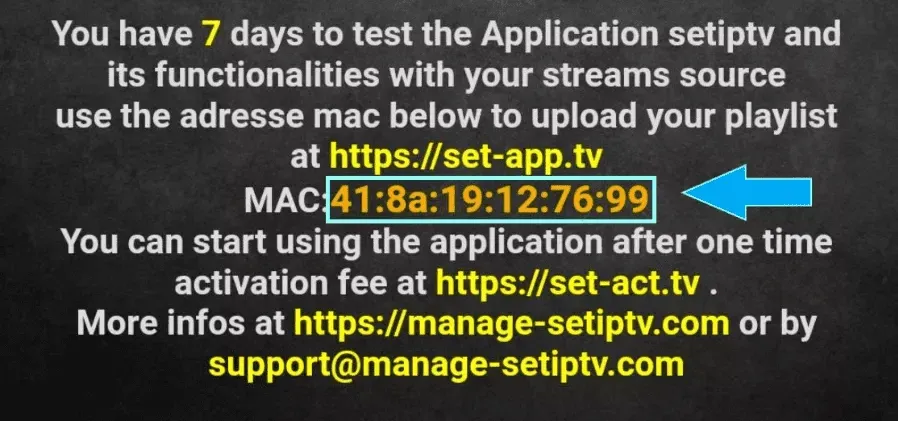
Step 3: Share the MAC Address with us through WhatsApp, Email, or Live Chat.
Step 4: After a few minutes, restart your TV, open the app, and you’re all set.
FireTVStick:
IPTV Installation For FireTVStick:
Step 1: On your device’s home screen, navigate to the Find option.
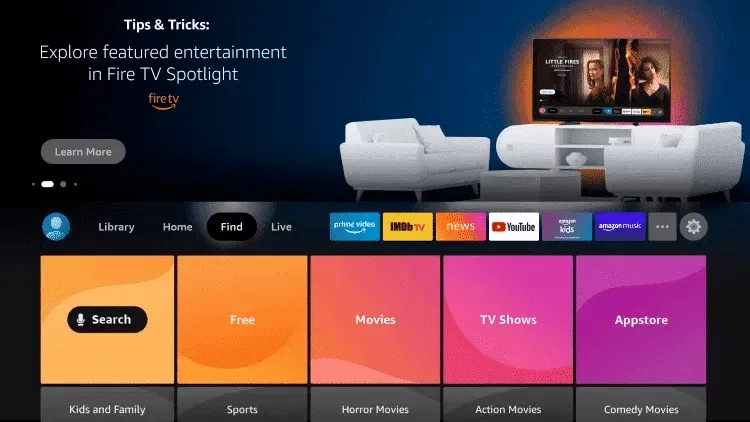
Step 2: Click Search.
Step 3: Search for Downloader and select it from the results.
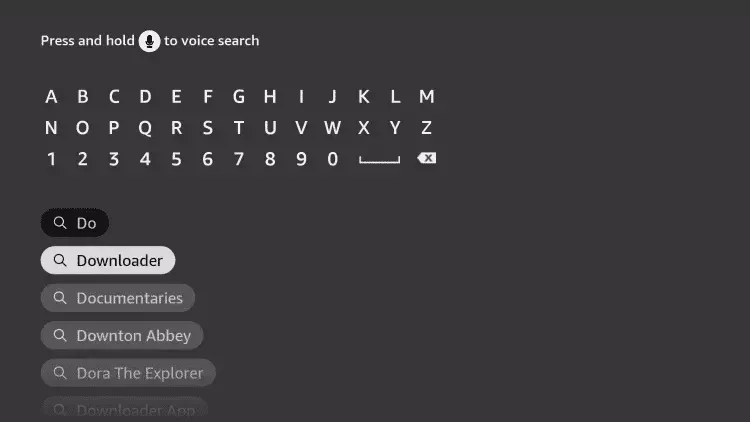
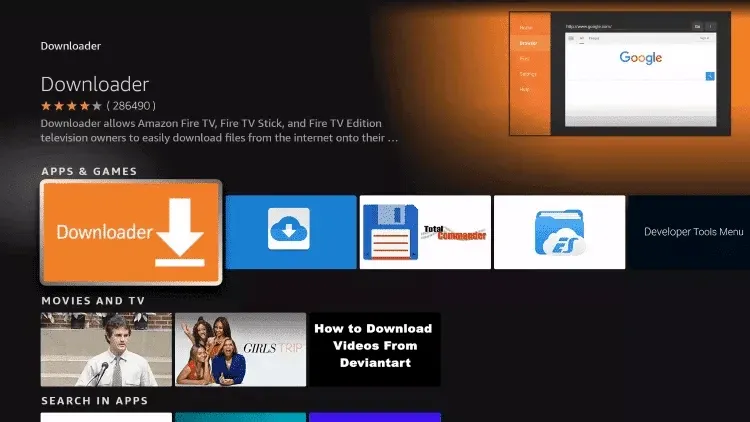
Step 4: Select the Downloader app from the list.
Step 5: Click Download.
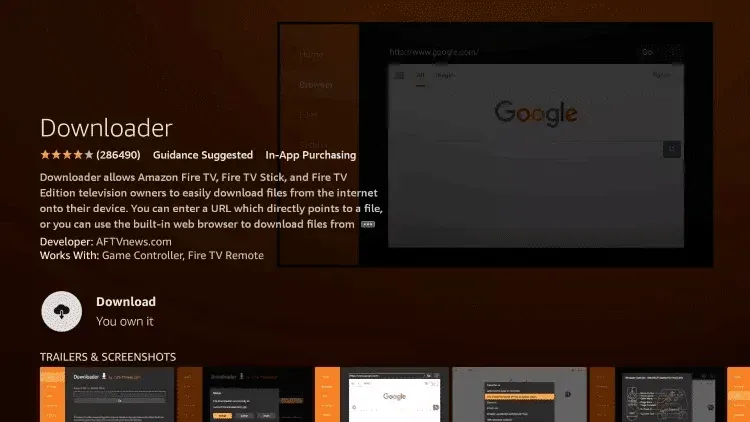
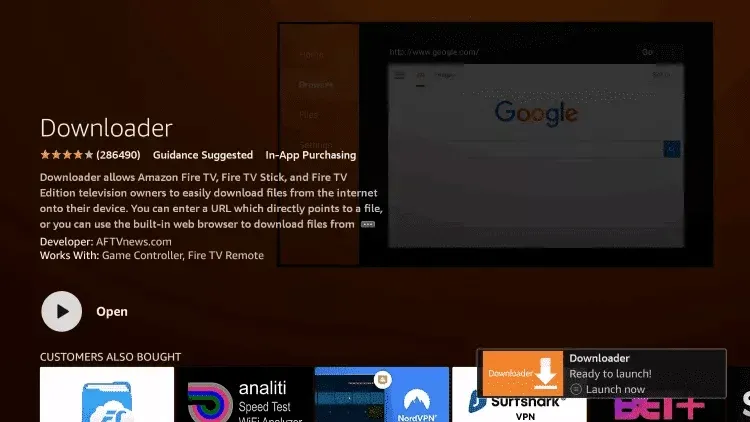
Step 6: After the installation is complete, click Open to launch the app.
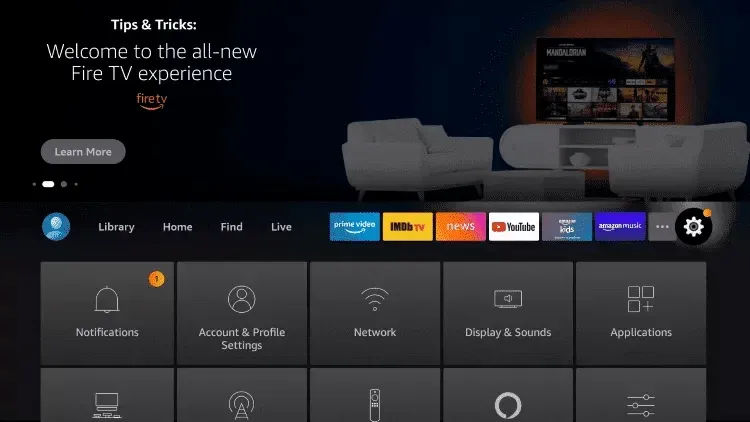
Step 7: Go back to the home screen and open Settings.
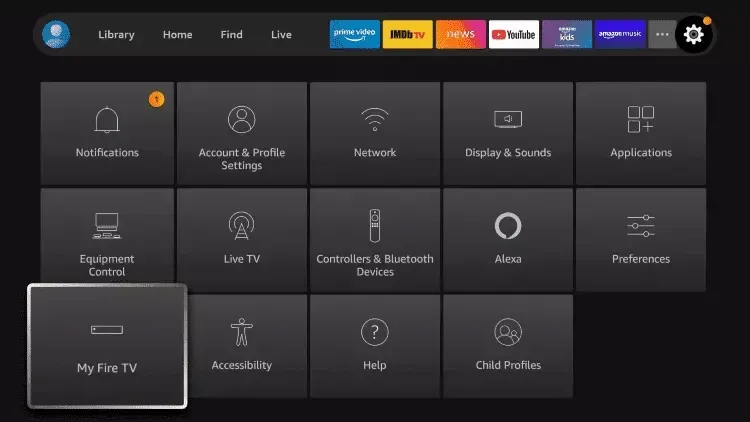
Step 8: Select My Fire TV from the menu.
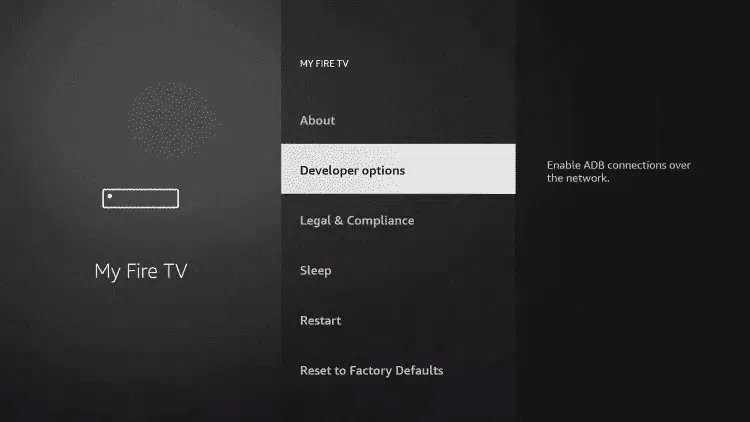
Step 9: Open Developer Options from the list.
Step 10: Select Install Unknown Apps.
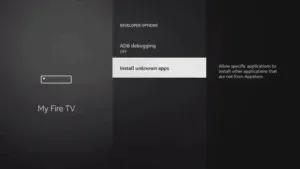
Step 11: Locate the Downloader app and select it.
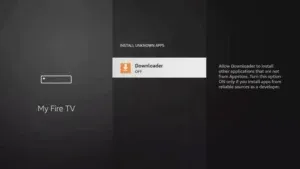
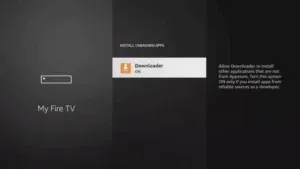
Step 12: This action will switch Unknown Sources to On for the Downloader app, allowing side-loading on your device.
Step 13: Open the Downloader app.
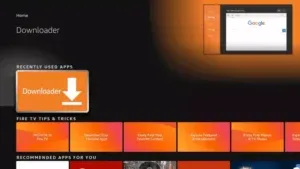
Step 14: When prompted, click Allow.
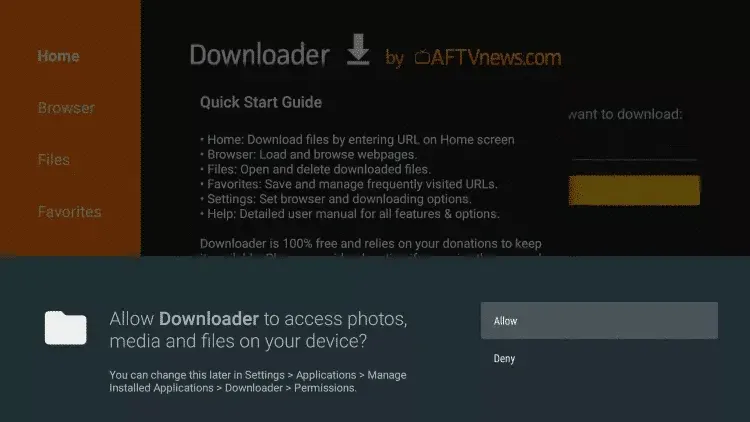
Step 15: Select OK to continue.
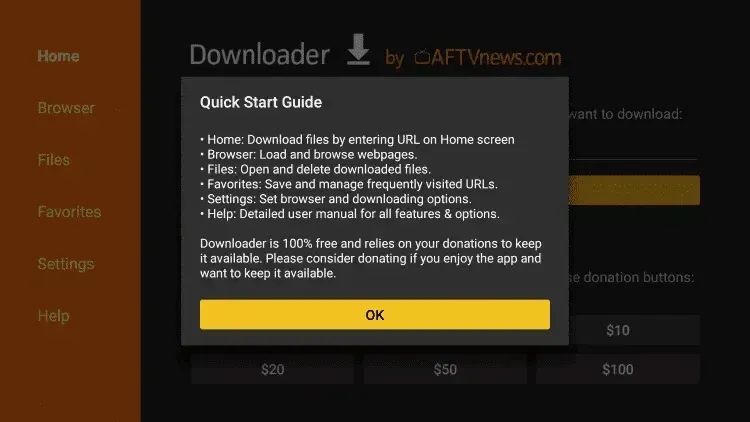
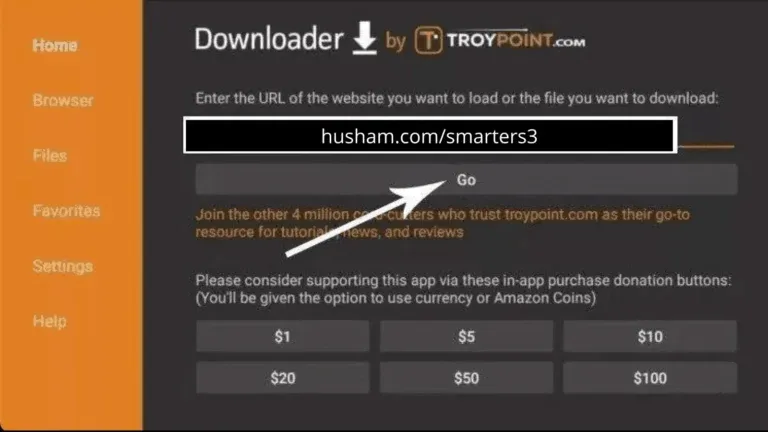
Step 16: Enter the following URL exactly as it appears:
https://www.iptvsmarters.com/smarters.apk
and click Go.
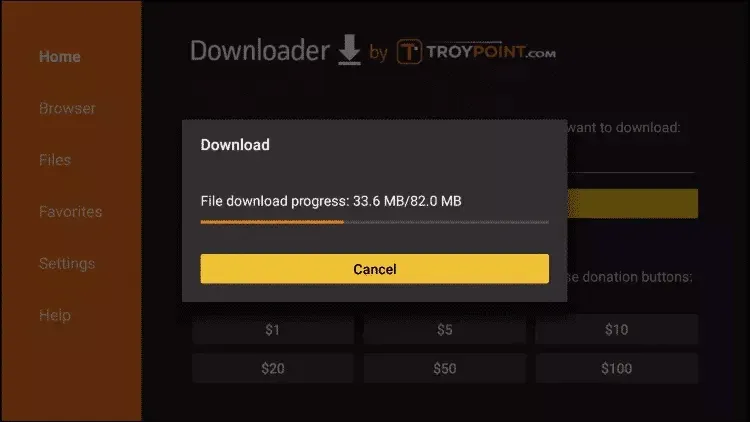
Step 17: Wait for the file to finish downloading.
Step 18: Select Install to begin the installation.
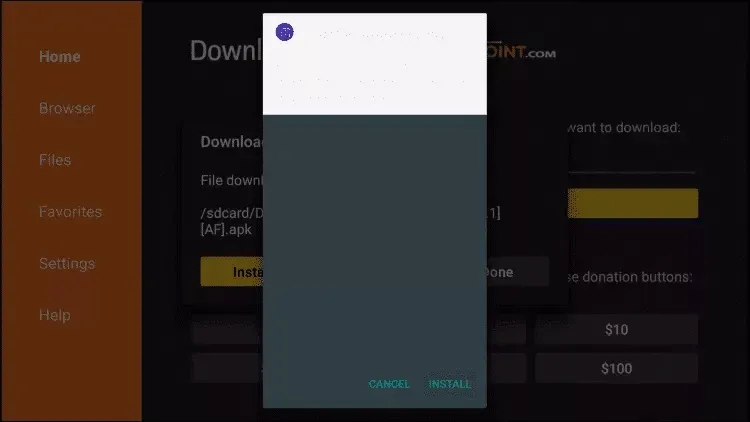
Step 19: Once the installation is complete, click Done.
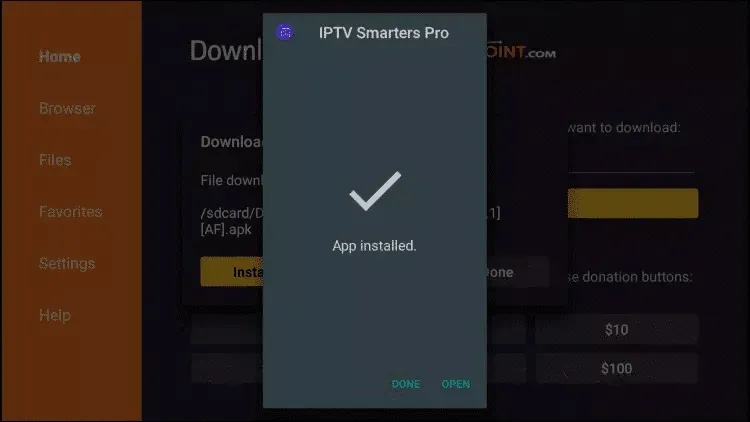
Step 20: Open Smarters Player and choose “Login with Xtream Codes API.”
Step 21: Sign in to the application using the subscription details we provide—your Username, Password, and Portal URL.
Windows Computer:
IPTV Installation For Windows computer:
Step 1: Download the Smarters Player app for Windows using this link: https://www.iptvsmarters.com/download?download=windows
Step 2: Choose Login With Xtreme Codes
Step 3: Sign in to the application using the subscription details we provide—your Username, Password, and Portal URL.
MAC Computer:
IPTV Installation For MAC Computer :
Step 1: Download the Smarters Player app using the following link:
https://www.iptvsmarters.com/download?download=mac
Step 2: Select “Login with Xtream Codes.”
Step 3: Sign in to the application using the subscription details we provide—your Username, Password, and Portal URL.
MAG Device:
Step 1: Once the box loads and the main portal screen appears, go to Settings and press the “SETUP/SET” button on your remote.
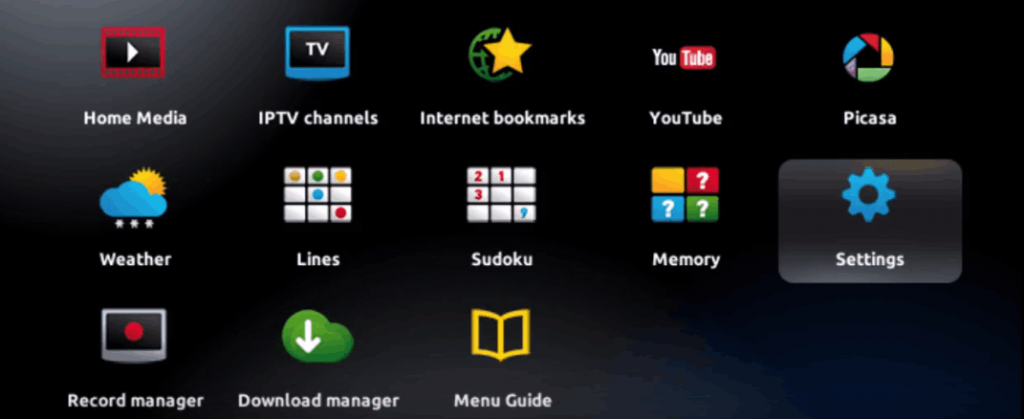
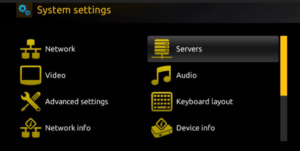
Step 2: Next, go to System Settings and select Servers.
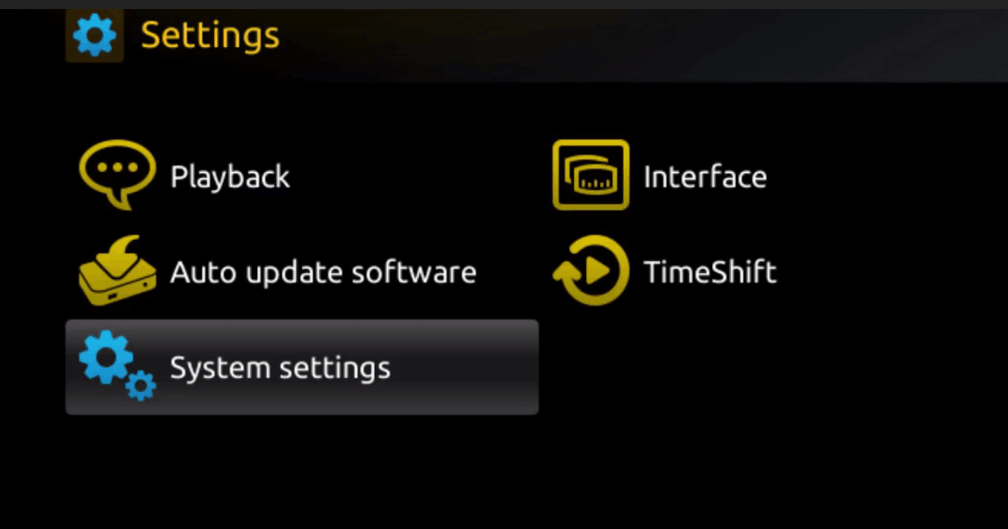
Step 3: Select Servers from the menu.
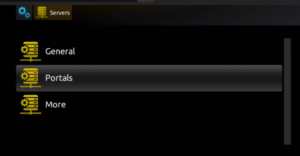
Step 4: Select the Portals option.
Step 5: In the “Portal 1 Name” field, enter a name for your portal, and in the “Portal 1 URL” field, enter the portal URL.
To activate your IPTV subscription on your MAG box, please provide us with the MAC address found on the label at the back of your device along with your order. The activation is done entirely remotely. Once completed, we will send you a URL link which you will need to enter in your Portal, as shown in the image below.

Step 6: Once all details are entered, select OK to save the changes.
Step 7: After saving the settings, press EXIT on your remote control.
Step 8: Finally, reboot the box. Select OK to apply the changes.
KODI:
USING KODI KRYOPTON 17 :
Launch Kodi app
1. In the left menu click on TV
Step 2: Select Add-on Browser.
Step 3: Select PVR IPTV Simple Client.
Step 4: Click Configure.
Step 5: Choose General.
Step 6: Enter your IPTV subscription URL.
Step 7: Please wait a few moments until the notifications are fully loaded.
Getting started with IPTV installation is simple when you follow the right steps and use a reliable setup method. With just a few quick actions, you can unlock a world of live TV, movies, and series on any device. A smooth setup ensures better performance, stable streaming, and zero interruptions. Start streaming smarter and enjoy entertainment without limits.
OUR BEST FEATURES
Why Choose us?
7-Day Money-Back Guarantee
If our services is not a good fit. We will grant you a full refund, accordingly to our refund policy.
Video On Demand
Stream full seasons of the top TV shows, the latest hit movies, children’s shows and more.
No Buffering
Our Channels Don'tt Buffer While You Are Watching
Easy To Setup
If you are an Unexperienced User, Contact Us.
24/7 Support
Fast Support 24/7: Quick and responsive customer support available 24/7.
Satisfaction Guaranteed
With our top-notch quality at a great price, we guarantee your 100% satisfaction.